WooCommerce tiered pricing: every way to set it up, compared
A customer adds 500 units to their cart and pays exactly the same per unit as the one who bought a single item. You know you should reward that order. Your competitors do. But you open WooCommerce, look for the setting, and it isn't there.
It isn't hiding. WooCommerce has no quantity-based pricing. A product has a price and a sale price, and that is the whole model. Everything else — bulk discounts, wholesale tiers, price breaks, role-based rates — is something you have to build on top.
This article is the map: the four ways stores actually solve this, what each one really costs, and how to pick.
What WooCommerce gives you out of the box
Worth being precise about the gap, because two of the built-in features look like they should cover it and don't:
- Regular price and sale price. One price each, per product or per variation. No relationship to quantity.
- Coupons. They can take a percentage off, a fixed amount off the cart, or a fixed amount off a product, and you can restrict them by minimum spend, product or category. What they cannot do is set a different unit price at different quantities — and the customer has to know the code exists and type it in. A coupon is a promotion, not a price list.
Neither is a pricing rule. That is the whole problem.
The four ways around it
| Setup effort | What it costs you | |
|---|---|---|
| Pack products or variations | Low | Splits stock and SEO across duplicates |
| Coupons | Low | Customer must apply a code; no per-quantity tiers |
| Custom code | High | A developer every time the pricing changes |
| A tiered-pricing plugin | Low | One more plugin in your stack |
1. Fake it with pack sizes
Create "Pack of 10" and "Pack of 50" as separate products, or as variations of a pack-size attribute, and price each one by hand.
It works, and it is free. What it costs you is everything downstream: stock is split across duplicates that are really the same item, your catalogue fills with near-identical pages competing with each other in search, and a customer who wants 27 units has no way to ask for it. Every price change is now several edits instead of one.
Fine for a shop with three products. It stops scaling almost immediately.
2. Coupons
Publish a code that takes 15% off orders over a certain amount.
Cheap and instant, and genuinely useful for campaigns. But it is a discount, not a price: the customer has to discover the code, the saving only appears at the cart, and you cannot express "€40 a unit from 50, €35 a unit from 200" at all. Coupons complement a pricing structure. They are not one.
3. Write the code
WooCommerce exposes filters on product price. A developer can hook into them and compute a price from the cart quantity.
This is the most flexible option and the most expensive one. The pricing logic now lives in a theme or a custom plugin, so every change to your commercial terms is a development ticket. It also has to be handled carefully in the two places a price is used — what the customer sees on the product page, and what the cart actually charges — which is where most homegrown implementations quietly go wrong.
Worth it when your pricing is genuinely unusual. Overkill for price breaks.
4. A tiered-pricing plugin
Define the quantity ranges and their prices once, say who they apply to, and let the plugin resolve the rest. Prices stay in the admin, not in code, so changing your terms is an edit rather than a deployment.
This is what Alondra does, and the rest of this article is about that route.
What it looks like when it works
The customer opens the product page and sees the price breaks laid out, clicks the tier they want, and the quantity is set for them:
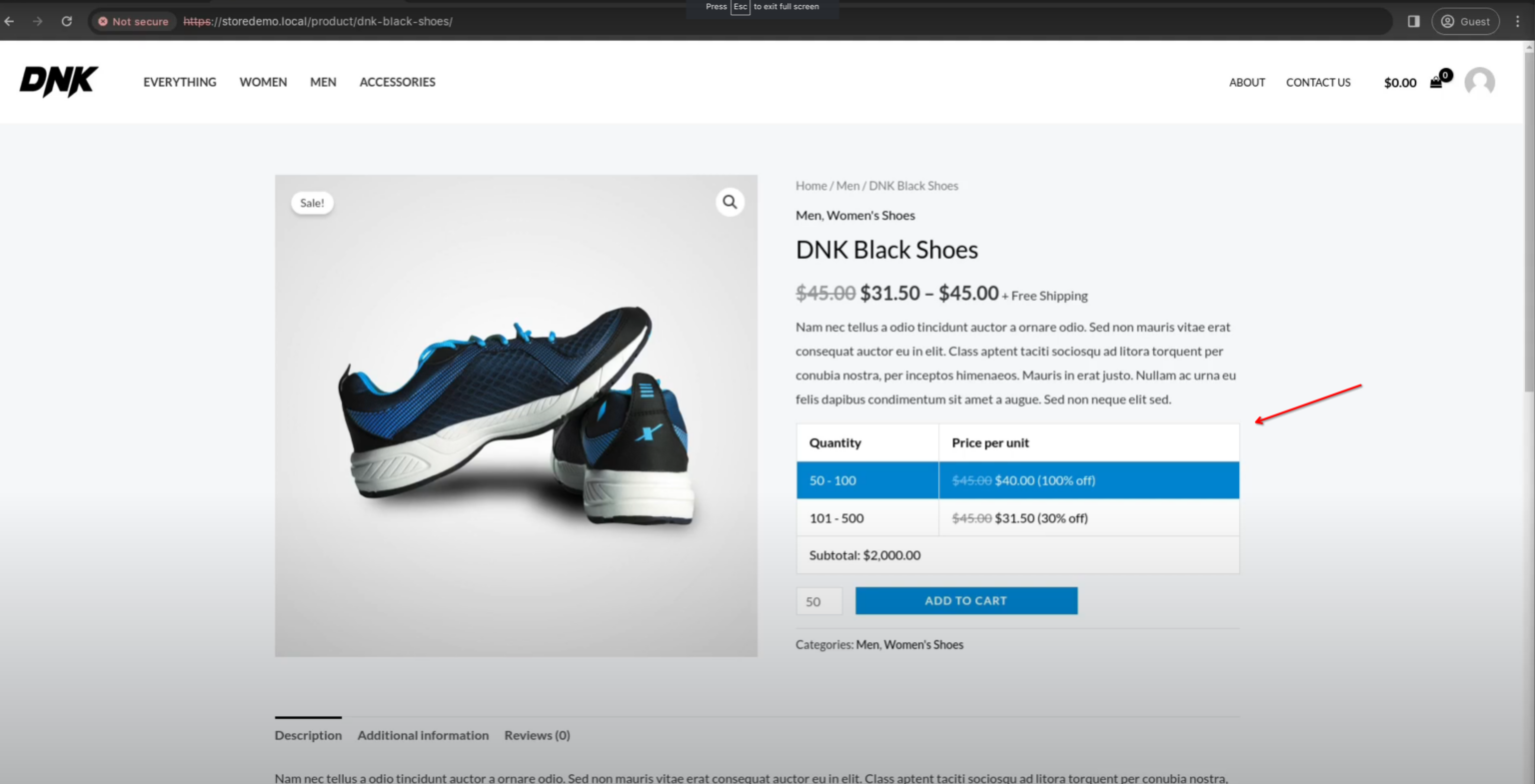
That table is the free layout. Pro adds two more — pills and list — and lets you pick where on the product page they appear; the Look and feel section of the documentation shows all three side by side.
How the pieces fit
Alondra has one core idea worth understanding before you set anything up: a group pairs a list of quantity ranges with the rules that decide when that list applies.
- The quantity ranges are the price list — "from 50 to 100 units, €40 each". Fixed prices per range are free; percentage-based ranges are a Pro feature.
- The rules are the conditions — products, variations, categories, tags, user roles, individual users. A group can carry as many rules as you like, and one match is enough to apply it. Targeting by any of those criteria is free; choosing the AND/OR logic between them is Pro, as is the priority value that settles which group wins when two of them match.
That is the entire model. Everything below is a different arrangement of those two pieces.
The full documentation walks through the screens field by field, and there is a separate guide for installing and activating the plugin if you haven't got that far yet.
Common setups
Each of these is a full walkthrough of one scenario:
- Wholesale pricing by user role — B2B customers see their own prices, retail customers see yours, on one store.
- Discounting an entire product category — one rule that covers every product in a category or tag, including the ones you add next month.
- Tiered pricing for variable products — pricing individual variations rather than the parent product, which is where most setups come unstuck.
Free or Pro
The free version on WordPress.org covers the whole core model: fixed prices per quantity range, the rules editor with every targeting criterion, the table layout on the product page, and the data cache that keeps all those rules from turning into database hits on every page load. It is a complete pricing system, not a trial.
Pro is for when you outgrow it — percentage pricing, group priority, AND/OR logic between conditions, the extra layouts and colors, live price updates as the customer changes quantity, and struck-through original prices. The full comparison lists every row, and the plans are here.
Whichever route you take, the thing worth fixing is the one at the top: the customer ordering 500 units should not be paying your single-unit price.