How to discount an entire product category in WooCommerce
You want everything in one category to sell at a better price past a certain quantity. All of Winter stock. The whole Accessories range. Every product tagged clearance.
In WooCommerce you open the category, look for the price field, and there isn't one. Categories are a way to organise a catalogue, not to price it. What you actually have is a sale price on each individual product, which means editing every product by hand — and editing them all back when the deal ends.
That is bad enough at twenty products. It is unworkable at two hundred, and it does nothing for quantity, because a sale price is one number no matter how many units go in the cart.
Why the obvious workarounds don't hold
Bulk-editing the sale price. WooCommerce's bulk edit can set a sale price across a selection, so this is not nothing. But it writes a value onto each product, so it drifts: a product added to the category next week has no discount, and someone has to remember to undo all of it later. And it still cannot vary with quantity.
A category-restricted coupon. WooCommerce coupons can be limited to products in a category, which sounds like exactly this. The catch is that a coupon is applied by the customer at the cart, with a code they have to know about, and it takes a flat percentage or amount off. It cannot express "under 50 units this price, over 50 that price".
What you want is a rule: these quantities, at these prices, for anything in this category. That is what a tiered pricing plugin gives you, and it is what the rest of this covers, using Alondra.
Setting it up
Go to WooCommerce → Tiered Pricing and add a group.
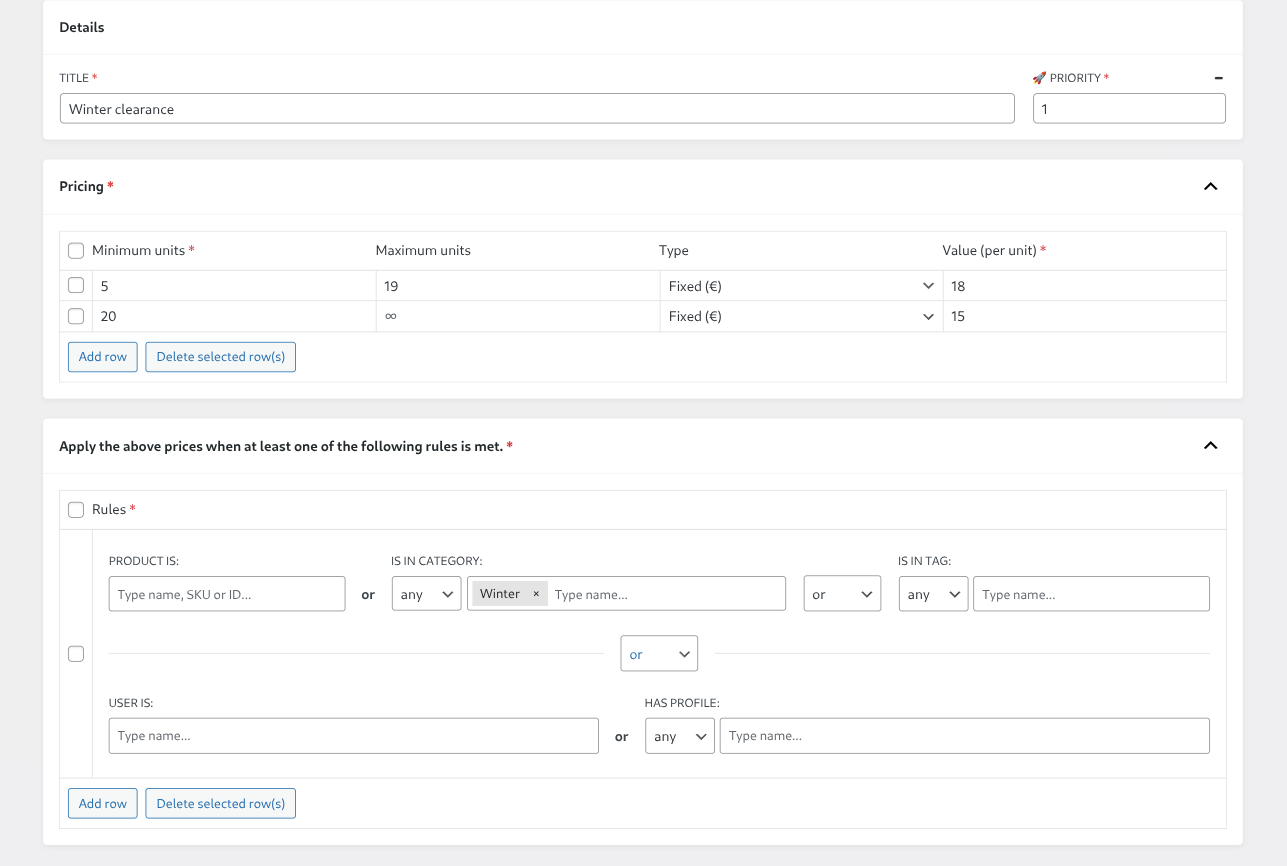
1. Name it after the deal. Winter clearance tells you what it is six months from now; Discount 2 does not.
2. Set the quantity ranges. Each row is a minimum quantity, a maximum, and the unit price between them:
| Minimum units | Maximum units | Value (per unit) |
|---|---|---|
| 5 | 19 | 18 |
| 20 | — | 15 |
An empty maximum on the last row means "and up". Fixed prices are in the free version; expressing the ladder as a percentage of the list price is Pro, and there the number is what the customer pays — 85 gives 15% off, not 85% off.
3. Point the rule at the category. In the rules panel, put the category into IS IN CATEGORY. Leave the rest empty. That is the entire rule: every product in that category now carries the ladder — including the ones that do not exist yet. Create a product next month and file it under that category, and it arrives already priced, with nothing for you to do.
Tags work identically through IS IN TAG, which is often the better tool — a tag like clearance can cut across categories, and you can add and remove it from products without touching how your catalogue is organised.
4. Publish. Every product in the category is priced by the ladder from that moment.
The part that catches people out
Subcategories do not inherit. This is the one thing worth reading twice.
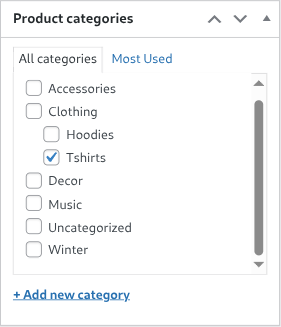
A rule pointing at Clothing matches a product only if that product has Clothing itself assigned. A product filed solely under Clothing → T-shirts does not match, even though T-shirts sits under Clothing in your category tree. The rule looks at the categories actually ticked on the product, not at where those categories live in the hierarchy.
In practice that means one of two things:
- Tick the parent category on your products as well as the child. A product in both
ClothingandT-shirtsmatches a rule for either. - Or add every subcategory you want covered to the rule itself. The field takes as many as you like.
Neither is more correct than the other; the first is a catalogue habit, the second is a rule you have to maintain. If your products already carry their parent categories, you will never run into this at all. If they only carry the deepest one, a Clothing rule will silently match nothing, and it will look like the plugin is broken when it is doing exactly what you asked it to.
What you get that bulk editing never gave you
The rule is live, not a snapshot. It is matched against the product's categories every time a customer looks at it, rather than resolved once when you saved the group. That is why future products are covered, and it works in the other direction too: take a product out of the category and it drops back to its normal price immediately.
That is the real difference from listing products one by one in PRODUCT IS, which is also free and perfectly good for a fixed handful of items — but is a list somebody has to keep current.
Ending the deal is one action. Unpublish the group and the whole category returns to its normal prices. No bulk edit to reverse, no sale prices left behind on products nobody remembered.
Combining it with other conditions
Add more fields to the same rule and the free version joins them with or — the ladder applies to anything matching the category, or the tag, or the role, and so on. That is what you want when you are widening the net.
Requiring conditions together is the Pro version, which lets you switch that logic to and. The difference is the size of the net. With or, a product qualifies if it is in Winter or tagged clearance — both lists get the ladder, in full. With and, only the products that are in Winter and also tagged clearance qualify: the overlap between the two, which is a much smaller set.
Use or to widen a deal across several groups of products, and and to narrow it to a specific slice.
When two groups both match. A product in a discounted category that also belongs to another group's rule matches both. Priority decides which wins, and it is a Pro field. On the free version, keep the groups from overlapping.
What the customer sees
On any product in the category, the price ladder appears on the product page, and clicking a tier sets that quantity. The price shown is the price charged — it carries through the cart to the order. Note the categories listed under this one: the ladder came from the rule, not from anything set on the product itself.
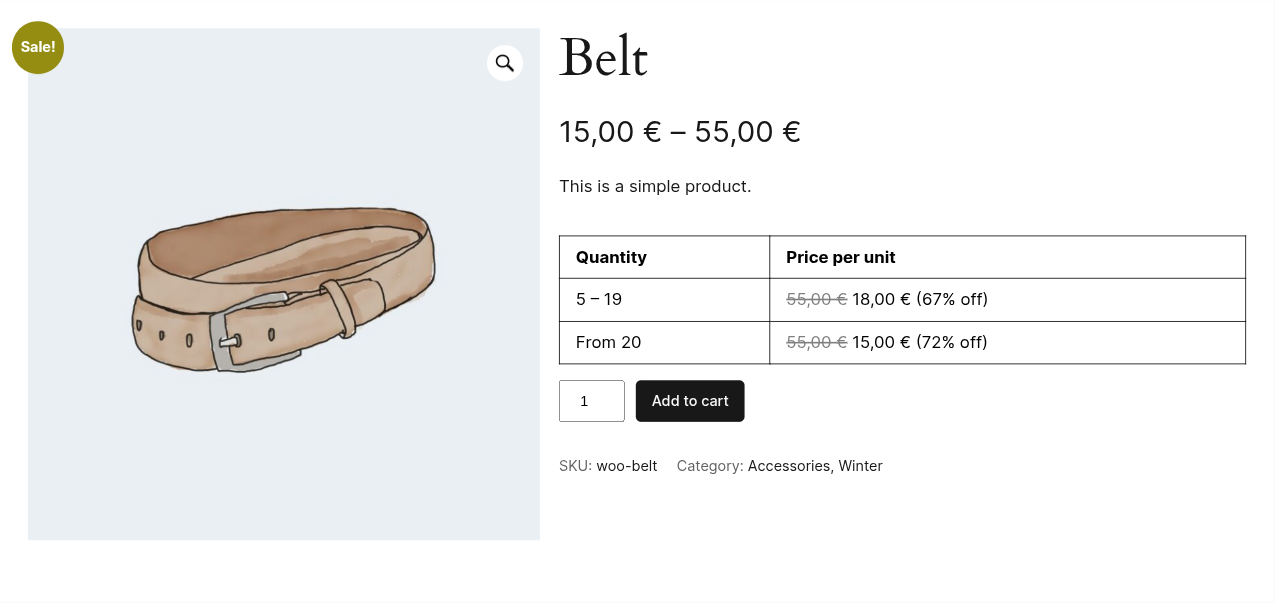
Products outside the category are untouched, and show their normal price with no ladder.

Free or Pro
Category and tag targeting, fixed price ladders, and the price table are all in the free version. A category-wide quantity discount needs nothing beyond it.
Pro is percentage pricing, and logic between conditions, priority between overlapping groups, the extra layouts and colours, and live price updates as the quantity changes. The full comparison lists every row.
For the wider picture — the other ways to approach pricing in WooCommerce and where each one breaks — start with the overview of tiered pricing. For the screens field by field, the documentation has them.