How to upgrade from FREE to PRO?
Getting the PRO version
If you are using the Free version
You have 3 ways to upgrade to PRO.
- By clicking the message "Upgrade to PRO" that you will see in the Plugins WordPress list, finding our plugin in the list.
- By getting the zip from us by email, using the checkout button of the pricing section on Alondra website.
- By upgrading from the plugin Settings page:
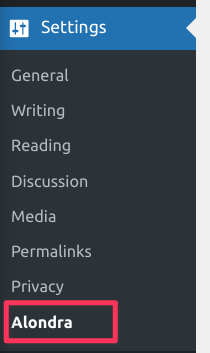

Or, if you don't have the Free version and want to go PRO directly
You can go to the Pricing section of our website and select a preferred plan that better fit your needs.
After purchasing a product, you will be sent 2 emails. The first will provide you with a link to download the product, along with your license key.
The second email, which you’ll receive after the payment is successfully processed, will provide a receipt, as well as a secure link to download your PDF invoice.
Before downloading the product, if you are using Apple's Safari as your browser, disable its default ZIP auto extraction setting:
Installing the PRO version in WordPress
If you’ve purchased the product directly within the WP Admin dashboard you are already good to go to next step, since you already have the PRO version installed in your WordPress. If not, continue reading.
Now that you've downloaded the premium zip file, you are ready to upload it to your WordPress website. There are two ways you can install it.
If you can't find the zip file you can also get it by logging into your Customer Dashboard on Freemius and going to the Download menu.
1. Installing from WordPress Dashboard
- Download the plugin file (ZIP file) to your system
- Login to your WordPress dashboard as an admin user
- Go to the Plugins menu > Add New in the left-hand sidebar
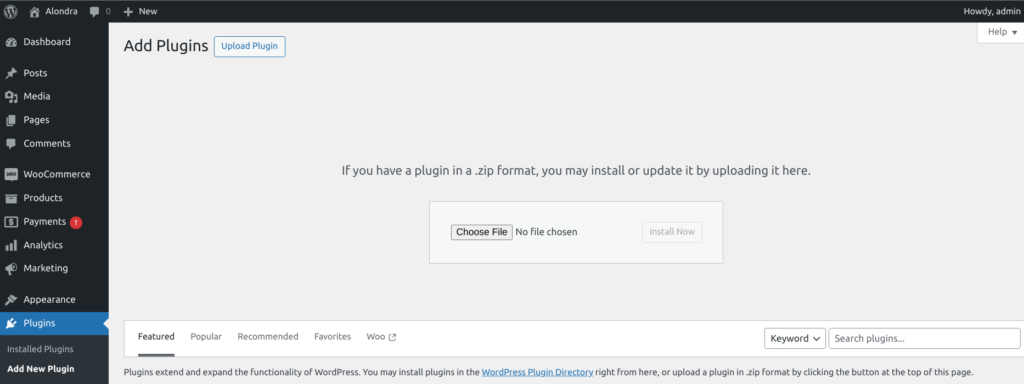
- Click on 'Upload Plugin' button at the top
- Click Choose File and select the zip you downloaded
- Click on 'Install Now' button and activate it
2. Manual Installation (Using FTP)
- Download the plugin file (ZIP file) to your system
- Upload the zip file to the
wp-content/pluginsdirectory to your web server. - Activate the plugin from the Plugins menu within the WordPress admin.
Now you can uninstall the Free version if it's still there via Wordpress Admin.
Activate the product with your License Key
You will have only the FREE features available until you enter your license key.
To make sure you have full access to all your plugin’s features and our premium support, as well as updates, the next step is to enter your license key.
If you’ve purchased the product directly within the WP Admin dashboard you are already good to go since the license key is automatically activated right after the upgrade. Otherwise, after activating the product, you will be redirected to a license activation screen.
If that not happend you can go to the Wordpress Plugin list, locate the plugin and click "Activate license" link.
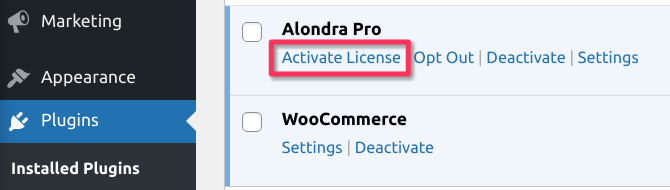
Then, simply enter the key provided in your email and click Agree & Activate License. Your product will now be activated and you'll be ready to begin setting it up.