<?xml version="1.0" encoding="utf-8"?>
<feed xmlns="http://www.w3.org/2005/Atom">
    <id>https://alondra.midri.net/blog</id>
    <title>Alondra Blog</title>
    <updated>2024-03-25T00:00:00.000Z</updated>
    <generator>https://github.com/jpmonette/feed</generator>
    <link rel="alternate" href="https://alondra.midri.net/blog"/>
    <subtitle>Alondra Blog</subtitle>
    <icon>https://alondra.midri.net/img/alondra-logo.jpg</icon>
    <entry>
        <title type="html"><![CDATA[How to set up Advanced Tiered Pricing on an online store]]></title>
        <id>https://alondra.midri.net/blog/how-you-can-have-advanced-tiered-prices-in-your-online-store</id>
        <link href="https://alondra.midri.net/blog/how-you-can-have-advanced-tiered-prices-in-your-online-store"/>
        <updated>2024-03-25T00:00:00.000Z</updated>
        <summary type="html"><![CDATA[What you will get from here]]></summary>
        <content type="html"><![CDATA[<h3 class="anchor anchorTargetStickyNavbar_Vzrq" id="what-you-will-get-from-here">What you will get from here<a href="https://alondra.midri.net/blog/how-you-can-have-advanced-tiered-prices-in-your-online-store#what-you-will-get-from-here" class="hash-link" aria-label="Direct link to What you will get from here" title="Direct link to What you will get from here" translate="no">​</a></h3>
<p>In this article we will show you how to set tiered prices based on the quantity of units of a product a user wants to buy and in a wide range of rules and criteria to match one or more users, products, categories, roles, etc. This guide is targeted to <strong>online stores</strong> made with <strong>WordPress and Woocommerce</strong>.</p>
<p>So, if you want to have something like what you see in the image above, you are in the right place.</p>
<h3 class="anchor anchorTargetStickyNavbar_Vzrq" id="who-is-this-guide-for">Who is this guide for?<a href="https://alondra.midri.net/blog/how-you-can-have-advanced-tiered-prices-in-your-online-store#who-is-this-guide-for" class="hash-link" aria-label="Direct link to Who is this guide for?" title="Direct link to Who is this guide for?" translate="no">​</a></h3>
<p>No matter if you are a <strong>retailer</strong>, manage a <strong>wholesale business</strong>, or are offering a range of <strong>services</strong>, this innovative tool empowers you to optimize your <strong>pricing strategy</strong> to effectively cater to the ever-evolving demands of your broad spectrum of customers. With its <strong>user-friendly interface</strong> and wide flexibility, you can explore consumer behavior trends in depth, identify key market segments, and implement <strong>tailored pricing</strong> approaches that resonate with different <strong>customer preferences</strong> and purchasing habits. Whether you're aiming to attract new customers, retain loyal clients, or maximize profits, this tool equips you with the insights and <strong>flexibility</strong> needed to thrive in today's competitive marketplace.</p>
<p>In summary, if you have a <strong>WordPress + WooCommerce online store</strong> under your management, this tool is for you.</p>
<p>That being said, let me tell you how to achieve it.</p>
<h3 class="anchor anchorTargetStickyNavbar_Vzrq" id="the-tool-and-resources">The tool and resources<a href="https://alondra.midri.net/blog/how-you-can-have-advanced-tiered-prices-in-your-online-store#the-tool-and-resources" class="hash-link" aria-label="Direct link to The tool and resources" title="Direct link to The tool and resources" translate="no">​</a></h3>
<p>On this occasion, we'd like to introduce you to the best WordPress plugin available in today's market for setting up <strong>tiered pricing structures</strong> in an e-commerce store, based on the quantity of units and applied according to specific criteria or a combination of rules.</p>
<p>We're referring to <strong>Alondra</strong>.</p>
<p>If you want to take a look at the <strong>key features</strong> of this tool, as well as the <strong>differences</strong> between the free and premium versions, you can <a class="" href="https://alondra.midri.net/">check it out at this link</a>. Additionally, we'd like to share with you the link to the <a href="https://www.youtube.com/watch?v=La-F65XrNLw" target="_blank" rel="noopener noreferrer" class="">official YouTube video</a> of this plugin, which we believe explains it in a clear and simple manner.</p>
<p>That being said, if you've made up your mind to install or try the plugin, we provide you with <strong>download links</strong> here for both the <a href="https://alondra.midri.net/assets/files/alondra-free.1.0.1-94fd87be11054dc805465ba825cb0d78.zip" target="_blank" class="">free</a> and <a class="" href="https://alondra.midri.net/#pricing">premium</a> versions, so you can choose the one that best fits your needs.</p>
<p>If you still want to learn a bit more about what this plugin offers or have a more practical idea of what it provides or how to use it before making a decision, stick around and I'll show you next.</p>
<h3 class="anchor anchorTargetStickyNavbar_Vzrq" id="alondra-in-practice">Alondra in practice<a href="https://alondra.midri.net/blog/how-you-can-have-advanced-tiered-prices-in-your-online-store#alondra-in-practice" class="hash-link" aria-label="Direct link to Alondra in practice" title="Direct link to Alondra in practice" translate="no">​</a></h3>
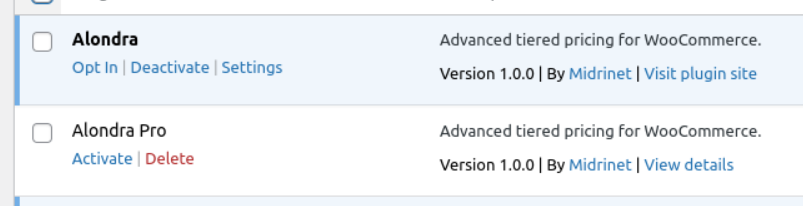
<p>Once you install the plugin, you will see the following on the plugin list of your WordPress website.</p>
<p>The first one if you've insetalled the free version, or the second one if you've installed any of the <a class="" href="https://alondra.midri.net/#pricing">Pro plans</a>.</p>
<p><img decoding="async" loading="lazy" src="https://alondra.midri.net/assets/images/plugins-page-33828713d96df40534f8be21e07441c9.png" width="803" height="206" class="img_ev3q"></p>
<blockquote>
<p>If you have any questions about how to download, install, and activate both the free or pro version of this plugin, you can follow <a class="" href="https://alondra.midri.net/docs/getting-started/installing-and-activating-a-alondra-plugin">this guide</a>.</p>
</blockquote>
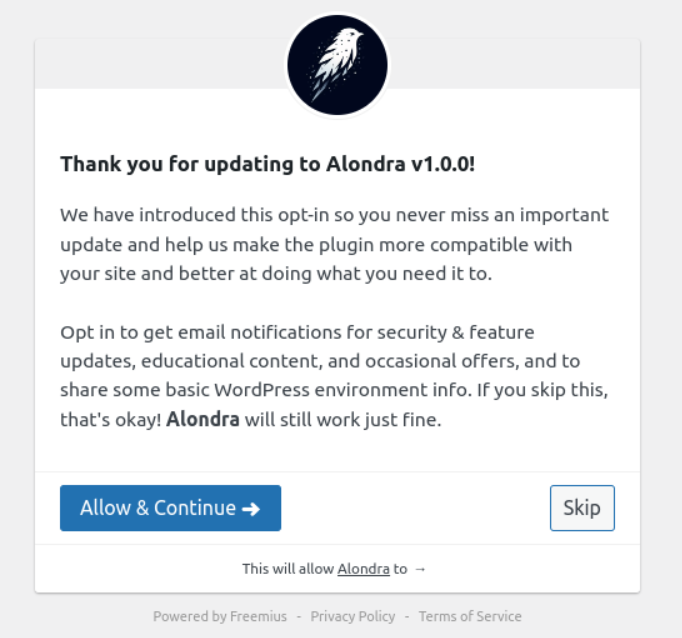
<p>When you activate the Free plugin, the first thing we will show you is a screen like this, where you can choose one of the desired options ("Allow" or "Skip"). We have made <a class="" href="https://alondra.midri.net/docs/licensing-billing/what-is-opt-in-data-collection">this article</a> in case you want to know more about the <strong>Opt-in Data Collection</strong>.</p>
<p><img decoding="async" loading="lazy" src="https://alondra.midri.net/assets/images/opt-in-after-activating-fre-version-84d7c3b74e1a497938040ece3b359eeb.png" width="682" height="638" class="img_ev3q"></p>
<p>Then, your plugin will be <strong>successfully activated</strong> and ready to use.</p>
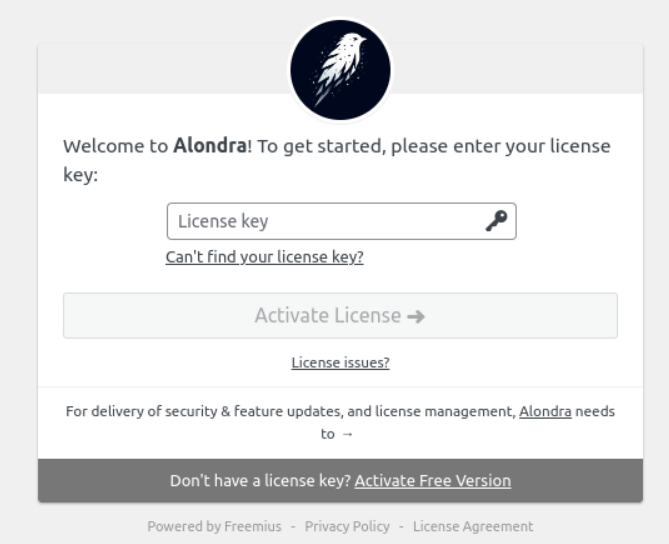
<p>However, if you've installed the Premium version of this tool, after activating, we will show you this screen so you can <strong>enter your license key</strong> we sent to you when you purchased the plugin:</p>
<p><img decoding="async" loading="lazy" src="https://alondra.midri.net/assets/images/enter-license-key-443ed3d9875d8c239eabacfcf5c726ac.png" width="669" height="544" class="img_ev3q"></p>
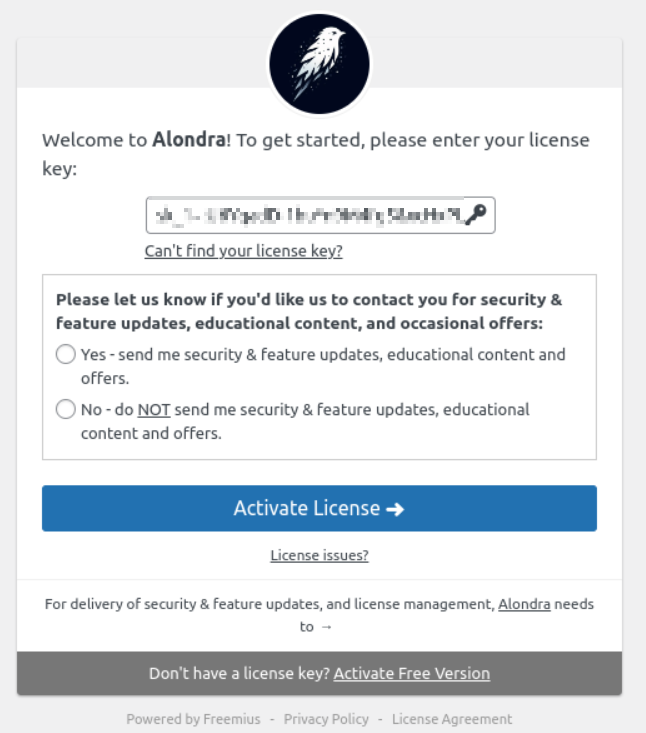
<p>Once you've entered the key, you can choose one of the following options and Activate it.</p>
<p>Also, we provide you an option to activate the Free version on the gray banner below, in case you don't want to use the license yet or don't have one active.</p>
<p><img decoding="async" loading="lazy" src="https://alondra.midri.net/assets/images/after-enter-license-key-9244e4795345811dda3da8a7d111ffb2.png" width="646" height="733" class="img_ev3q"></p>
<p>Now your plugin is successfully installed and ready to use.</p>
<p>Now that you have the plugin active, you will have only two screens in the backoffice to pay attention to. That is the <strong>Settings screen</strong> and the <strong>Tiered Prices screen</strong>.</p>
<h4 class="anchor anchorTargetStickyNavbar_Vzrq" id="alondra-settings-screen">Alondra Settings screen<a href="https://alondra.midri.net/blog/how-you-can-have-advanced-tiered-prices-in-your-online-store#alondra-settings-screen" class="hash-link" aria-label="Direct link to Alondra Settings screen" title="Direct link to Alondra Settings screen" translate="no">​</a></h4>
<p>As you can see, you can access the plugin Settings from the <strong>plugins list menu</strong>. Yes, we made it <strong>as simple and easy to use as possible</strong>:</p>
<p><img decoding="async" loading="lazy" src="https://alondra.midri.net/assets/images/settings-from-plugins-menu-edbbcd8e49a3d4d1ddc03e87611c3b21.png" width="677" height="113" class="img_ev3q"></p>
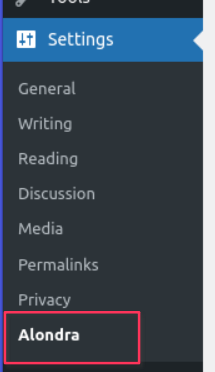
<p>Also you can find it from the Settings WordPress menu, in the sidebar:</p>
<p><img decoding="async" loading="lazy" src="https://alondra.midri.net/assets/images/settings-menu-9ec93b70b48456f096b6c60b6b199199.png" width="215" height="372" class="img_ev3q"></p>
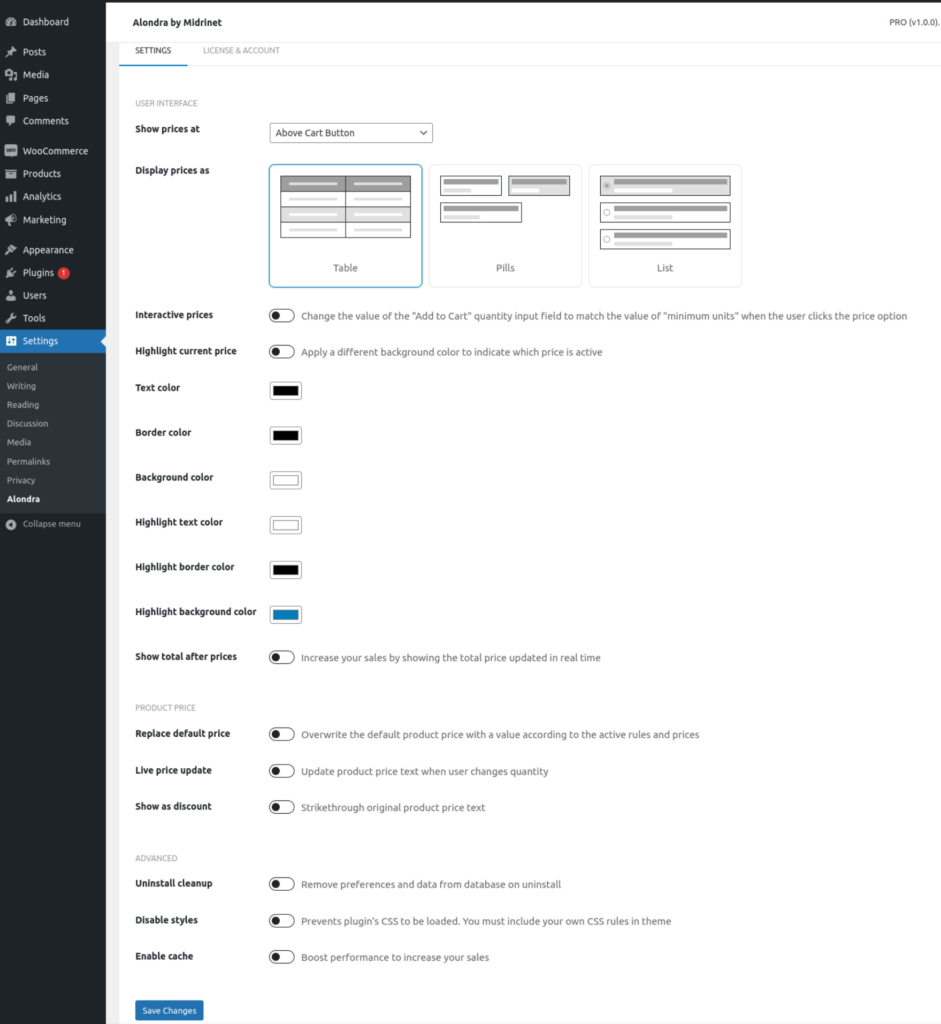
<p>From the <strong>Setting page</strong> you have a variety of option to better set up your needs which we cover in more detail in the <a class="" href="https://alondra.midri.net/">Alondra Full Documentation article</a>. But here we bring you a quick look of all of the setting options you have:</p>
<p><img decoding="async" loading="lazy" src="https://alondra.midri.net/assets/images/all-settings-c3f01ba182c5ab6624b49ecf4ece497b.png" width="941" height="1024" class="img_ev3q"></p>
<p>Some of these options are available only in the <strong>Pro version</strong>. Click <a class="" href="https://alondra.midri.net/#features">here</a> and scroll down a little to see the <strong>table of Features comparisons</strong> between Free and Pro versions to get a better idea.</p>
<h4 class="anchor anchorTargetStickyNavbar_Vzrq" id="alondra-tiered-prices-screen">Alondra Tiered Prices screen<a href="https://alondra.midri.net/blog/how-you-can-have-advanced-tiered-prices-in-your-online-store#alondra-tiered-prices-screen" class="hash-link" aria-label="Direct link to Alondra Tiered Prices screen" title="Direct link to Alondra Tiered Prices screen" translate="no">​</a></h4>
<p>This is the <strong>main section</strong> from where you will be able to set any type of discounts matching with one or more rules or criterias.</p>
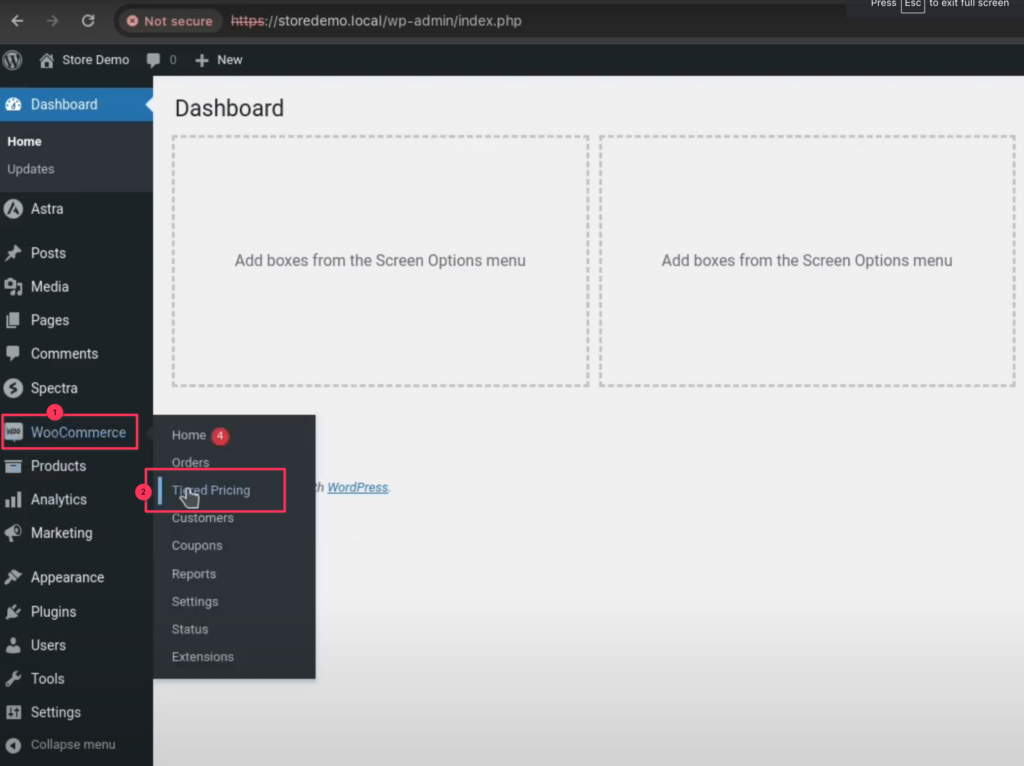
<p>So, go to <strong>WooCommerce</strong> plugin and under that menu you will find the <strong>Tiered Pricing</strong> submenu.</p>
<p><img decoding="async" loading="lazy" src="https://alondra.midri.net/assets/images/tiered-pricing-menu-02d0992d21a7a7068e27a4a85a7857aa.png" width="1024" height="766" class="img_ev3q"></p>
<h3 class="anchor anchorTargetStickyNavbar_Vzrq" id="the-bottom-line">The bottom line<a href="https://alondra.midri.net/blog/how-you-can-have-advanced-tiered-prices-in-your-online-store#the-bottom-line" class="hash-link" aria-label="Direct link to The bottom line" title="Direct link to The bottom line" translate="no">​</a></h3>
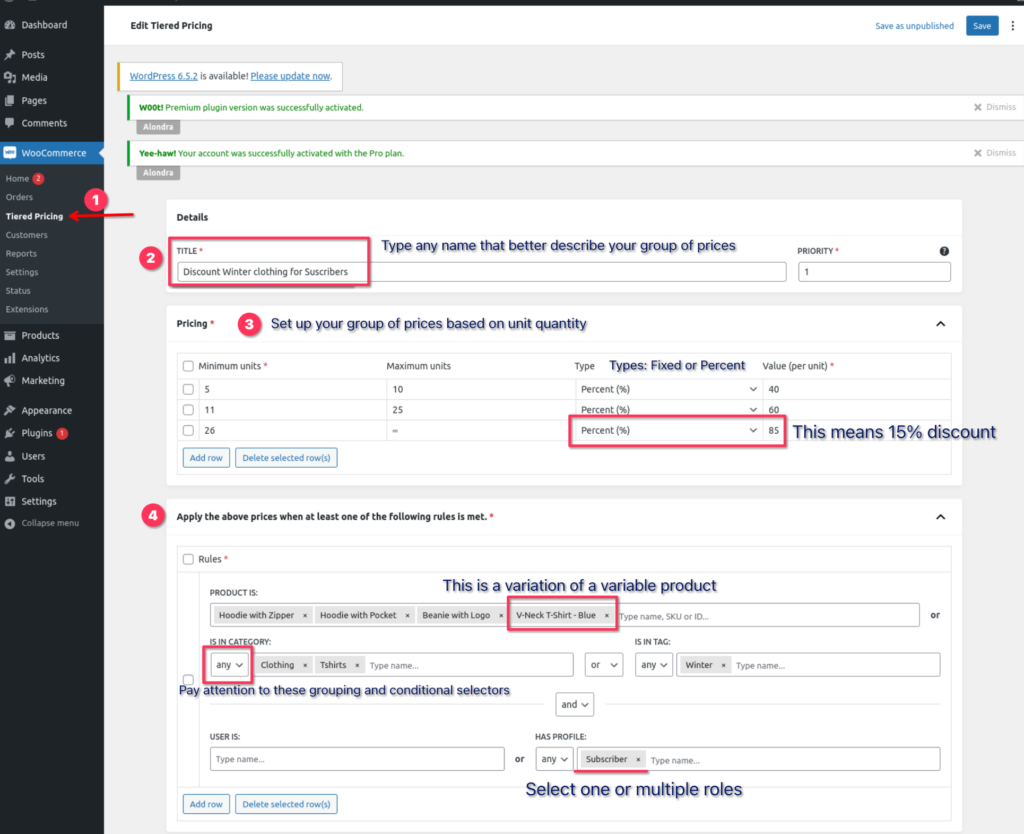
<p>You can find a more detailed guide on the <a class="" href="https://alondra.midri.net/">Alondra Full Documentation</a> article of how to use this Tiered Pricing screen, but in the following screenshots you will have a quite full overview of all you can do with this plugin:</p>
<p><img decoding="async" loading="lazy" src="https://alondra.midri.net/assets/images/tiered-pricing-screen-3ae37879d07955889da0ea9b6c03f2e4.png" width="1024" height="834" class="img_ev3q"></p>
<p>As you can see in the above screenshots, this is the most flexible and powerful tool for set up tiered princing on any WooCommerce store since the amount of flexibility and combinations you have.</p>
<p>And if this seems like not enough to you, at the top right corner you have a field called "<strong>Priority</strong>", to define which group of Tiered Prices + rules will <strong>apply over others</strong> in case some rule(s) match in many of them.</p>
<h4 class="anchor anchorTargetStickyNavbar_Vzrq" id="be-amazed-by-the-results">Be amazed by the results<a href="https://alondra.midri.net/blog/how-you-can-have-advanced-tiered-prices-in-your-online-store#be-amazed-by-the-results" class="hash-link" aria-label="Direct link to Be amazed by the results" title="Direct link to Be amazed by the results" translate="no">​</a></h4>
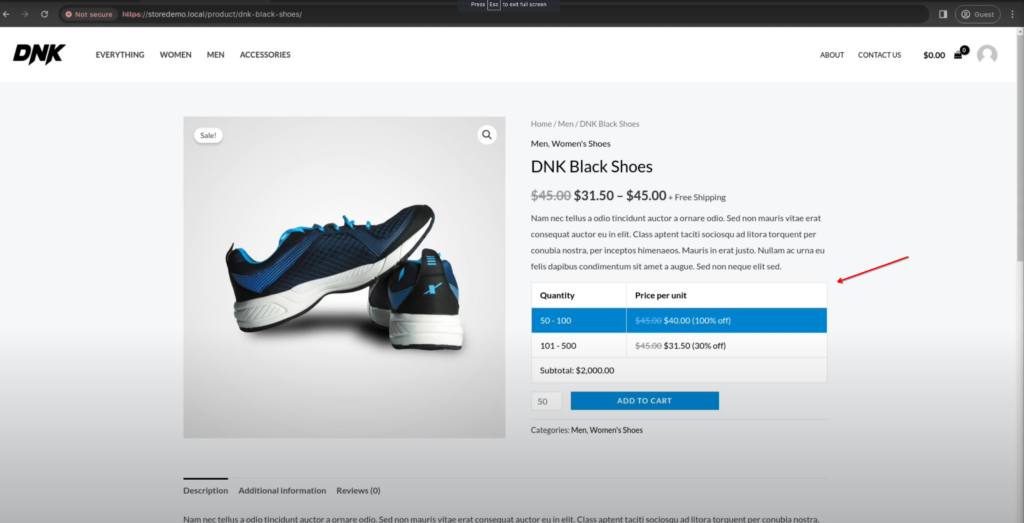
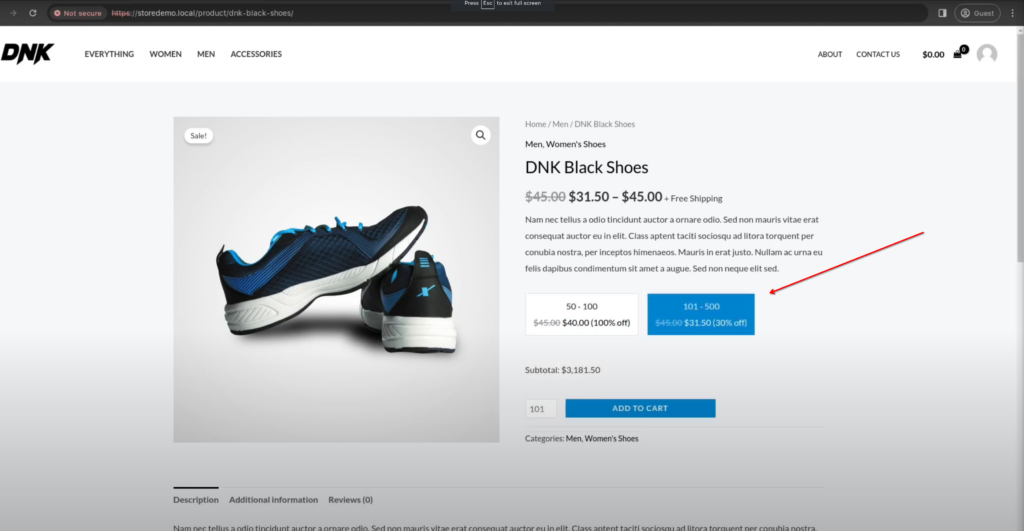
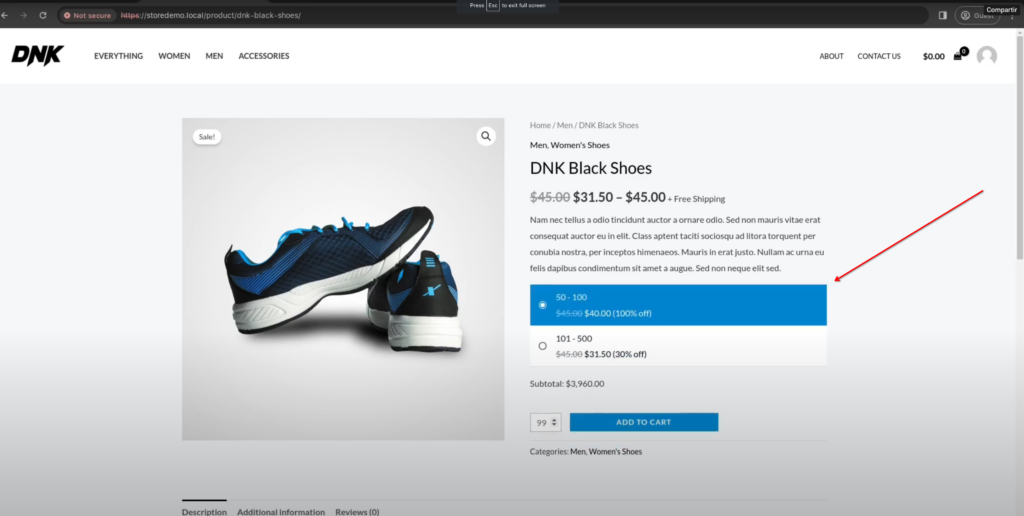
<p>When you finish your configurations you can <strong>test the result</strong> by opening a product detail page and see what happens:</p>
<p>If you've selected the "<strong>Table design</strong>" option from settings, you will see something like this:</p>
<p><img decoding="async" loading="lazy" src="https://alondra.midri.net/assets/images/image-43-1024x523-2d5c565fb8d68f235435563242c8f649.png" width="1024" height="523" class="img_ev3q"></p>
<p>If you've selected the "<strong>Pill design</strong>" option from settings, you will see something like this:</p>
<p><img decoding="async" loading="lazy" src="https://alondra.midri.net/assets/images/image-9-1024x531-ef18a3ae20e493770b7366d6c005d108.png" width="1024" height="531" class="img_ev3q"></p>
<p>If you've selected the "<strong>List design</strong>" option from settings, you will see something like this:</p>
<p><img decoding="async" loading="lazy" src="https://alondra.midri.net/assets/images/image-44-1024x516-30cb9eff8c6676244d8cbdc597200876.png" width="1024" height="516" class="img_ev3q"></p>
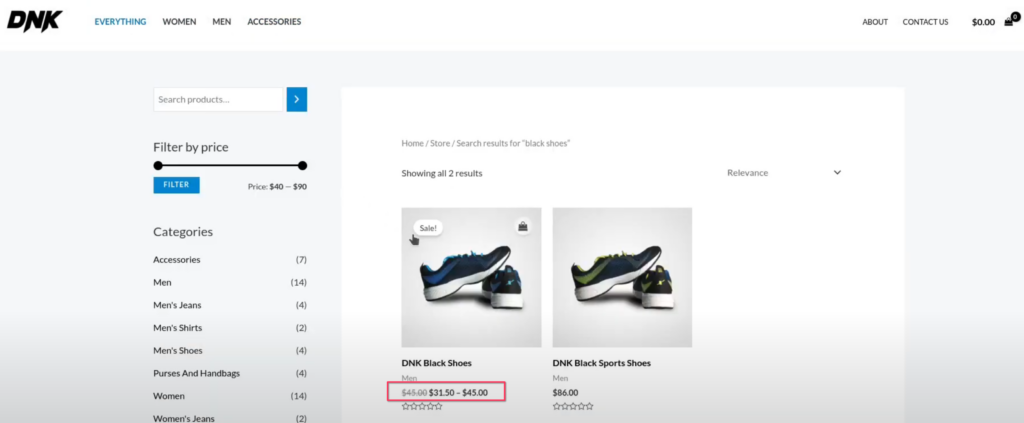
<p>Also, you can configure the plugin to <strong>display the prices</strong> like this <strong>on the product listing pages</strong>:</p>
<p><img decoding="async" loading="lazy" src="https://alondra.midri.net/assets/images/image-31-1024x423-e14f2193de49f1b6c6fe86ad4c69bb4b.png" width="1024" height="423" class="img_ev3q"></p>
<p>Now your customers can see the <strong>awesome discounts</strong> you have for them.</p>
<p>We hope you enjoy!</p>]]></content>
        <author>
            <name>Midrinet</name>
        </author>
        <category label="woocommerce-tutorials" term="woocommerce-tutorials"/>
        <category label="boost-sells" term="boost-sells"/>
        <category label="tiered-prices" term="tiered-prices"/>
    </entry>
</feed>